Agentic Crypto Analytics With Binance Skills Hub + Gemini CLI Setup - For Marketers
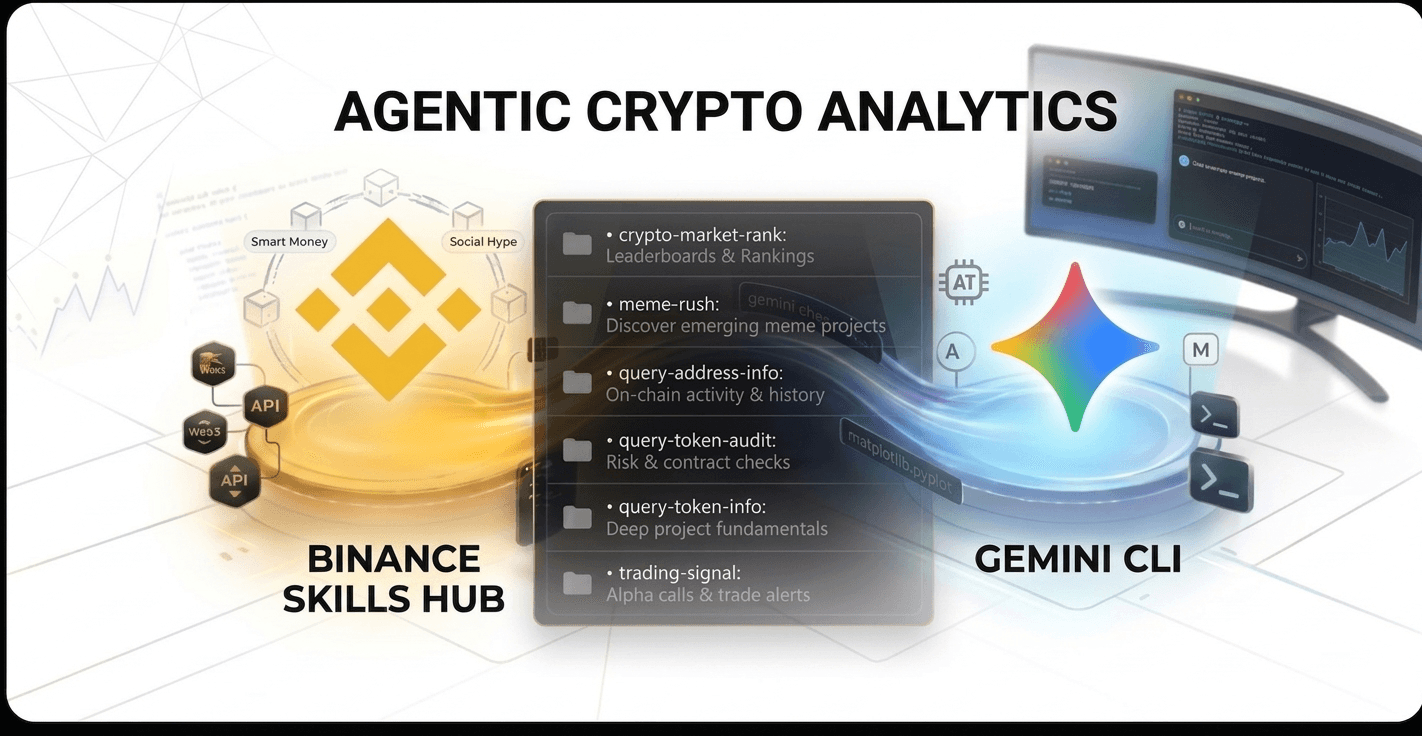
Binance just dropped a bunch of skills that can be quite handy when it comes to research.
For marketers and researchers, this means you can now build a "Research Agent" that doesn't just talk but actually does the work: fetching real-time social hype, auditing tokens, and visualizing trends.
This guide walks you through the exact setup to get these tools running in your local terminal using the Gemini CLI.
Binance Skills Hub: https://github.com/binance/binance-skills-hub/tree/main/skills/binance-web3 Crypto market rank Meme rush Query address info Query token audit Query token info Trading signal
For each of them, we will be doing a deep-dive. For this particular blog post, we will focus on the setup in Gemini CLI. Step-by-Step Setup Guide
1. Prepare Your Environment Open your command line terminal (on Windows, search for CMD
2. Install the Gemini CLI Run this command to install the official Google terminal interface globally:
npm install -g @google/gemini-cli
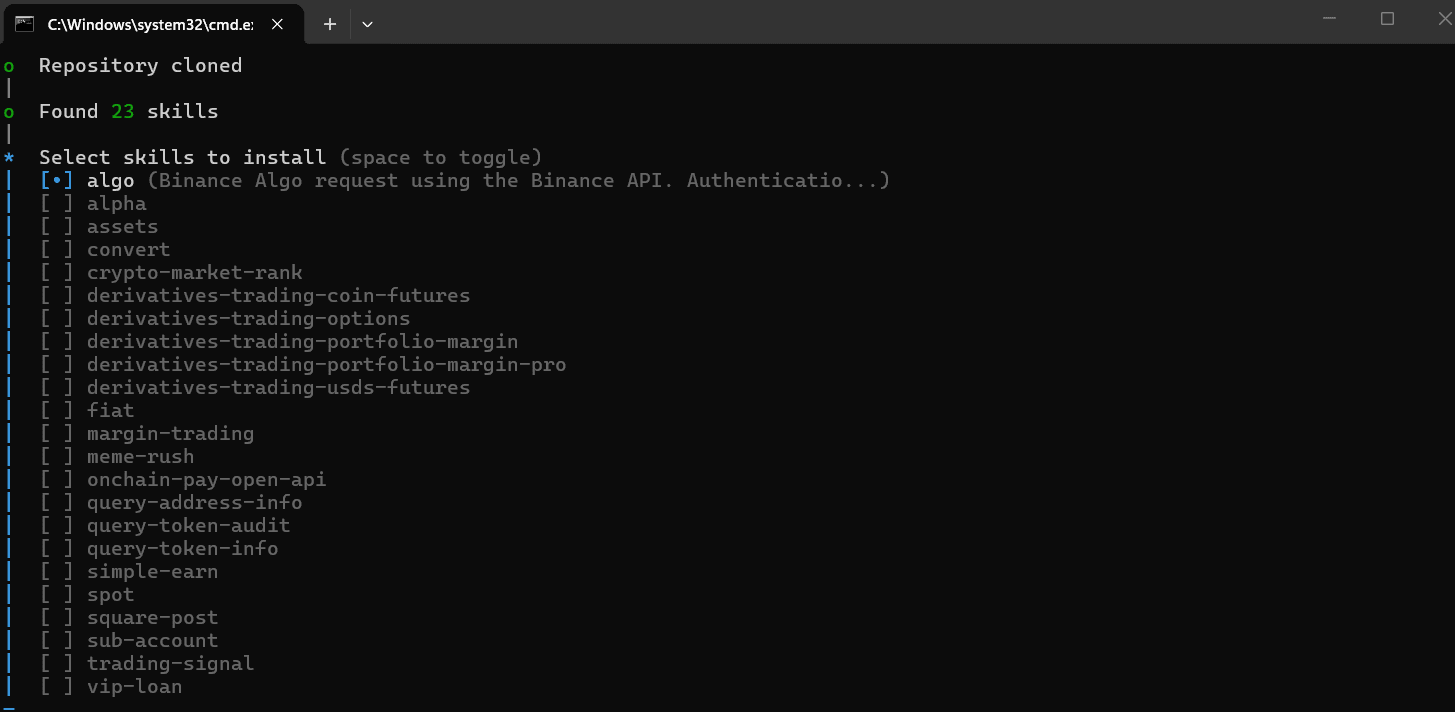
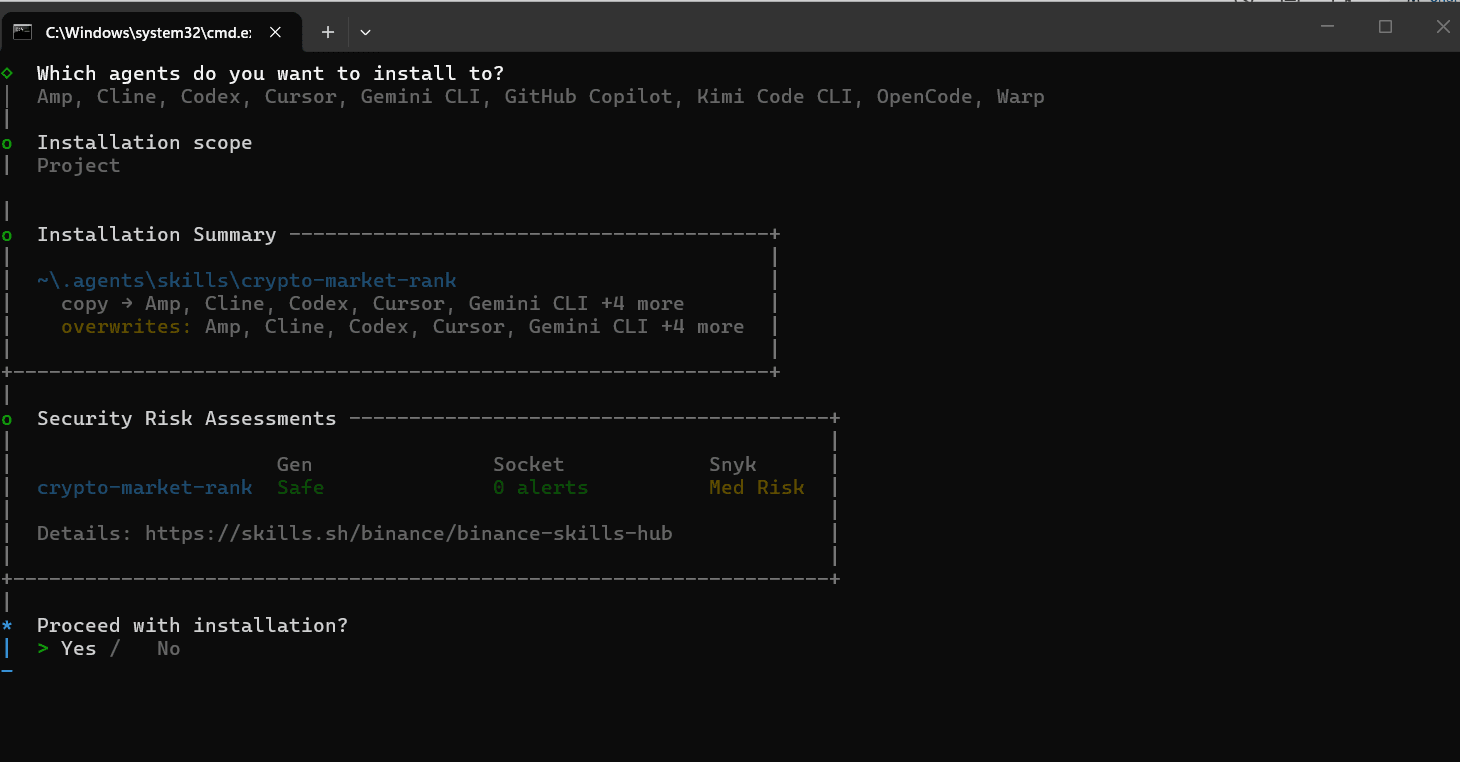
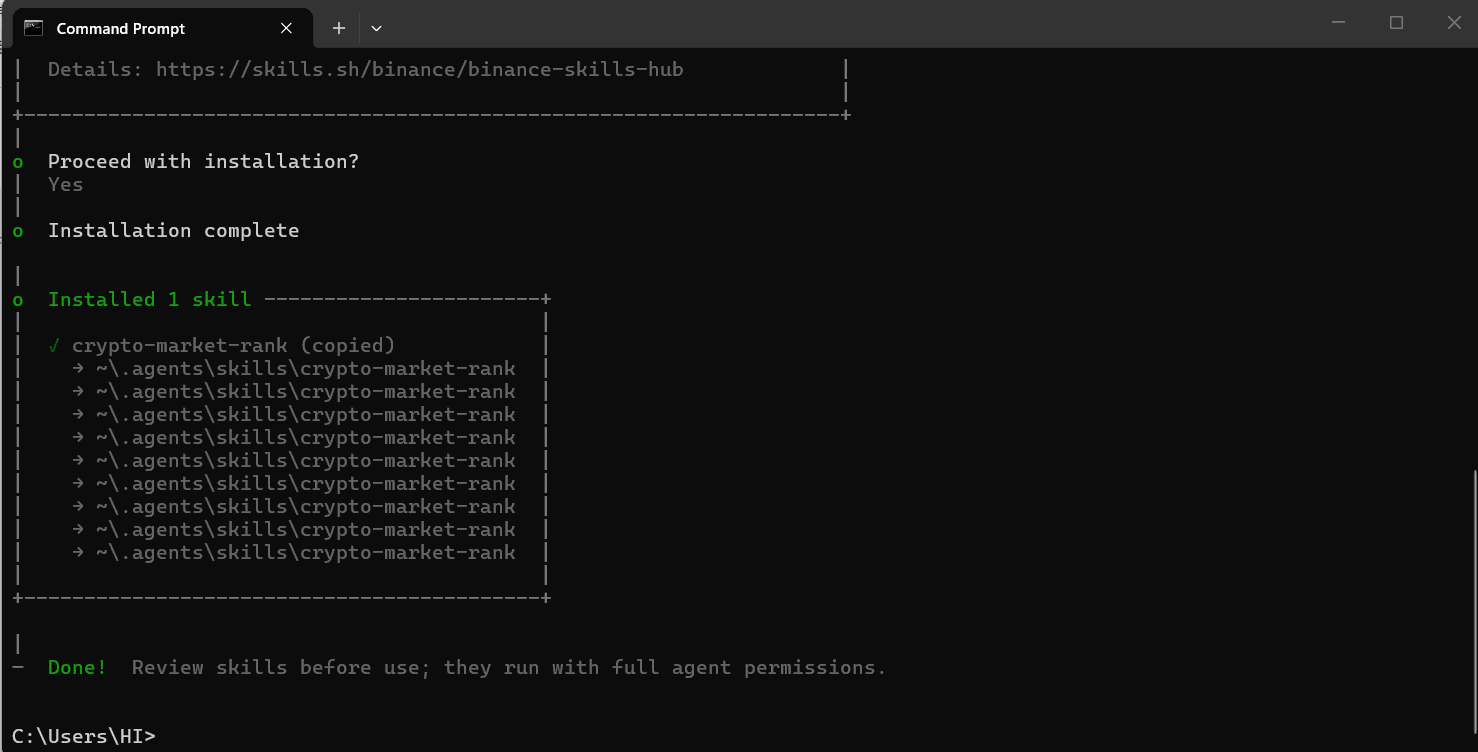
3. Add the Binance Web3 Capabilities Add the official skills from Binance
npx skills add binance/binance-skills-hub
For this particular example, we will setup crypto-market-rank skill
This skill itself is a loaded MD file with a bunch of possibilities. To test the setup, we will focus on Social Hype Leaderboard
4. Authenticate Gemini and Launch Type into your terminal
gemini
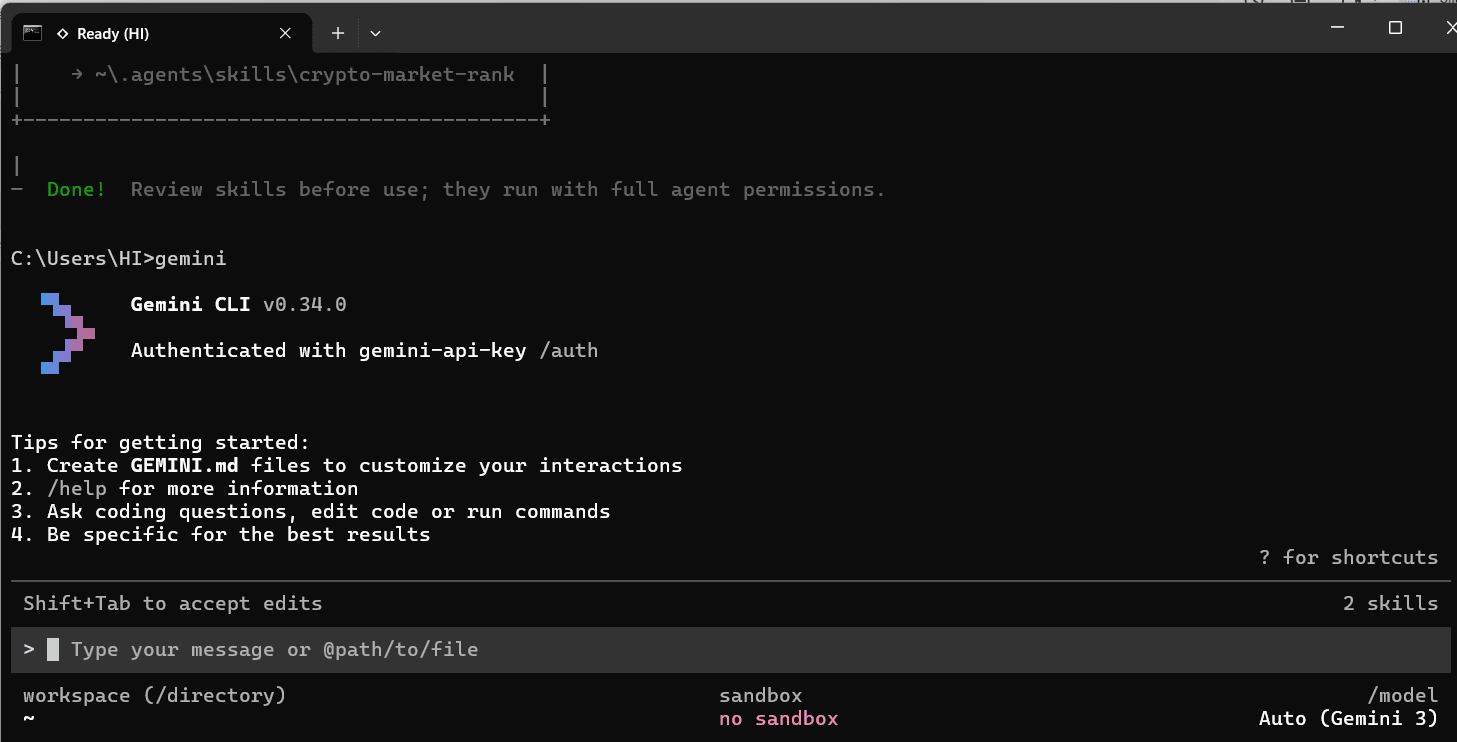
Once you paste your Gemini API key, your Gemini CLI should look like this.
5. Verify Your Agent's Skills
List Skills: See list of Binance skills
/skills list
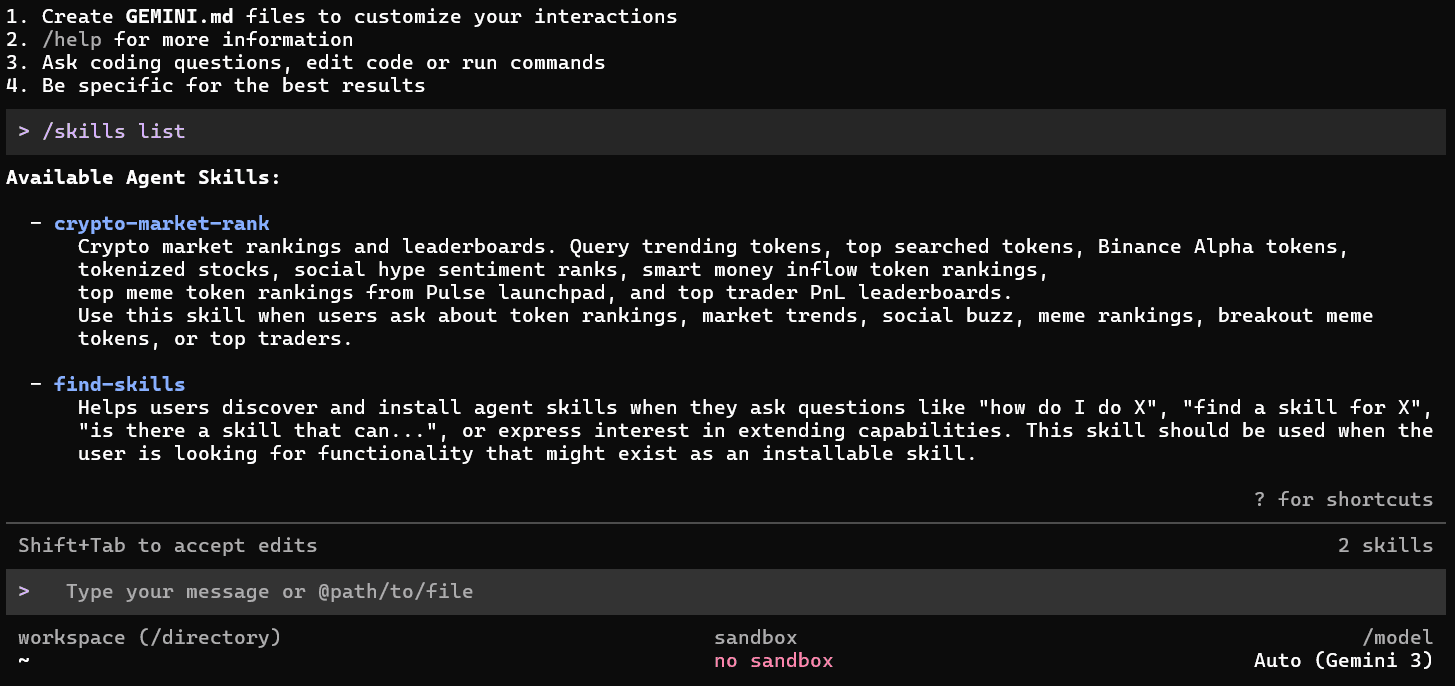
To test the setup, we'll use the crypto-market-rank skill to see which tokens are currently trending on the BNB Smart Chain (BSC).
If you review the first API link for Social Hype Leaderboard, you can see the mandatory and optional parameters.
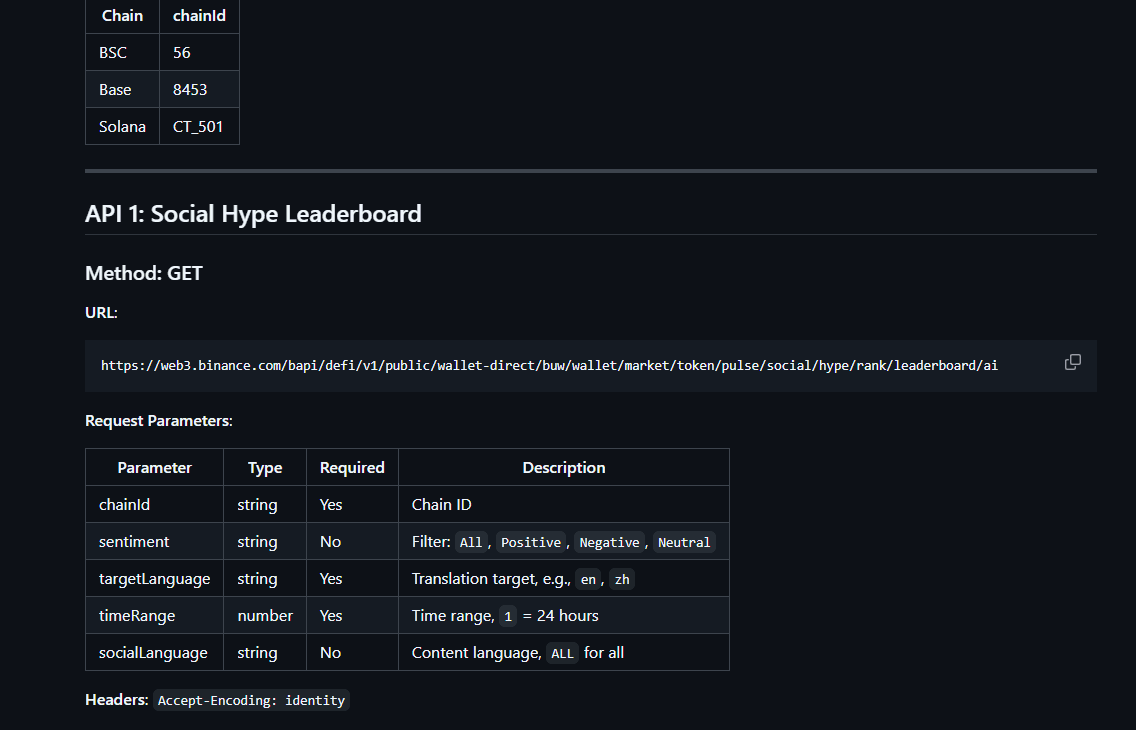
Hence, our command in Gemini CLI will include BSC (as chain is required, also BSC, Base, Solana are available right now) and timeRange = 1
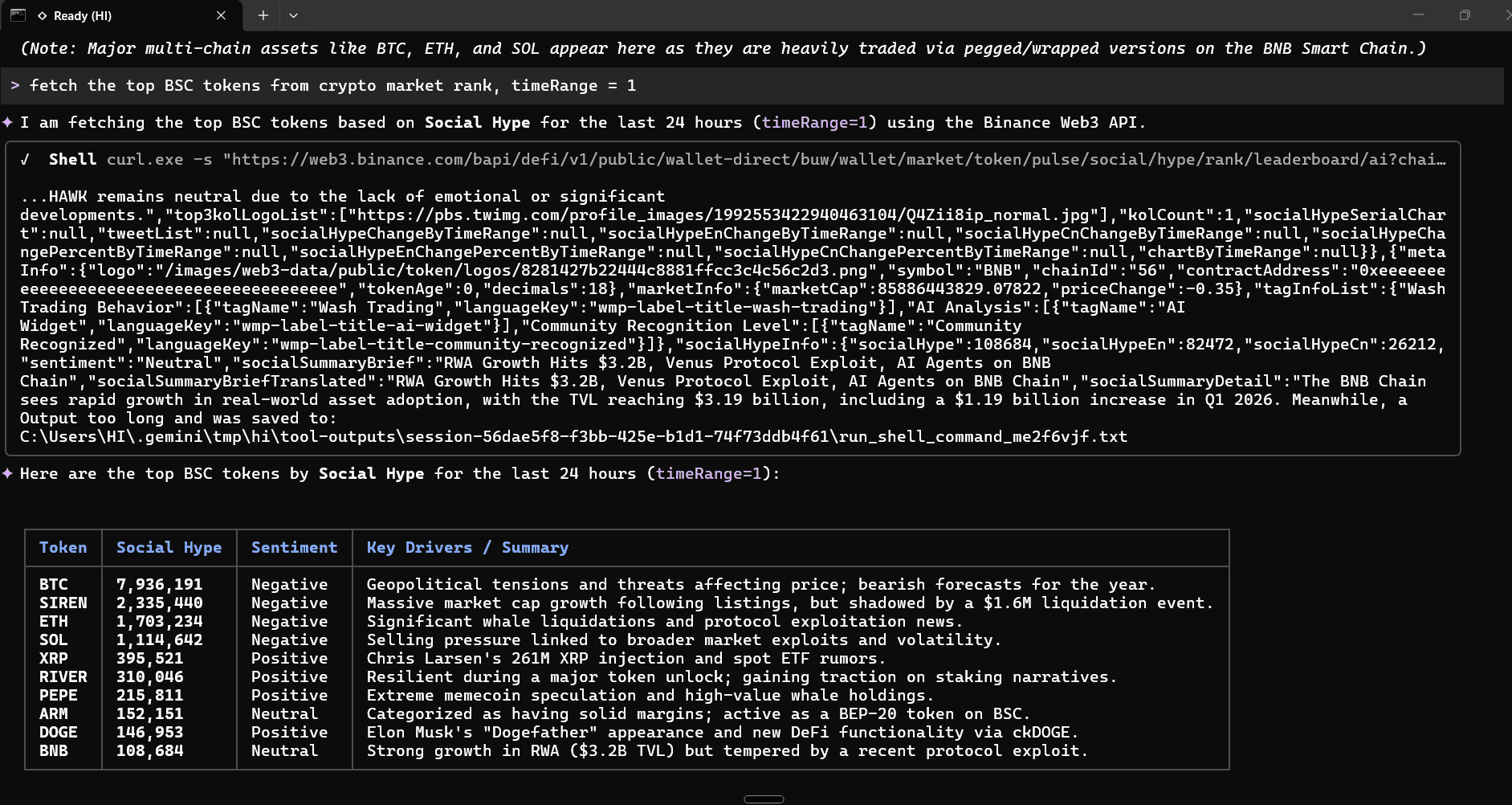
Note: I did try with timeRange = 7 but the call breaks. Prompt: âÂÂFetch the top BSC tokens from crypto market rank with timeRange = 1"
Note: The "BTC" you see in the BSC (Binance Smart Chain) tokens list is actually BTCB (Bitcoin BEP20).
When you look at the raw data returned by the API for that specific token, its contract address is 0x7130d2a12b9bcbfae4f2634d864a1ee1ce3ead9c.
This is a pegged token issued by Binance on the BNB Smart Chain. It tracks the value of Bitcoin and is backed 1:1 by actual Bitcoin held in reserve by Binance. It allows users to trade, hold, and use Bitcoin within the decentralized finance (DeFi) ecosystem on the Binance Smart Chain with much lower transaction fees and faster block times than the native Bitcoin network. The API labels it simply as "BTC" because it represents Bitcoin's value and utility within the BSC ecosystem, even though it's technically a wrapped/pegged version.
Bonus: While the CLI delivers on the data, it's not the prettiest of visualizations. Therefore, we will run a prompt to convert this into a Python plot and save the image as 'binance_hype.png
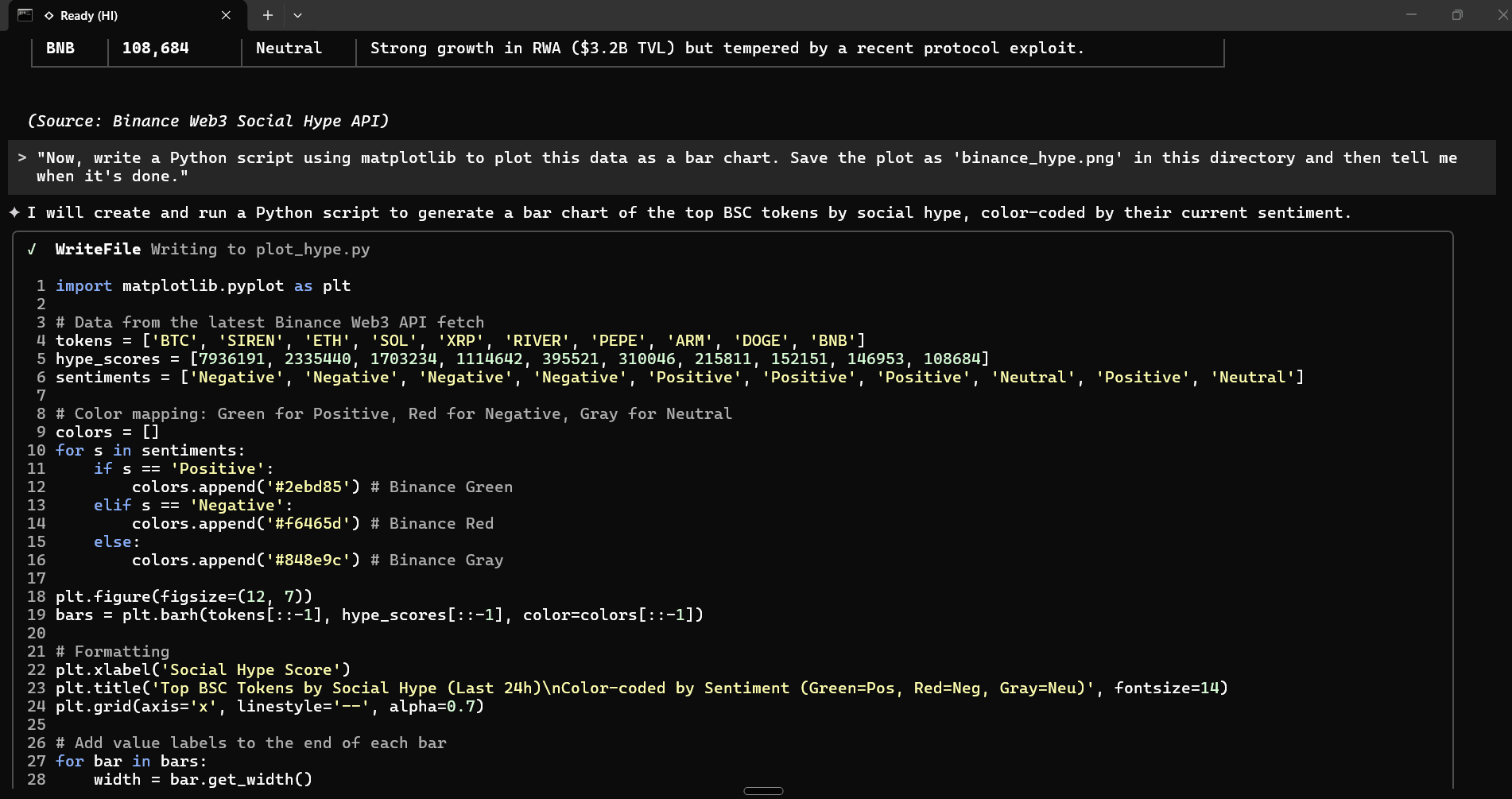
Once the chart is created, you should see the below output plot saved successfully as binance_hype.png
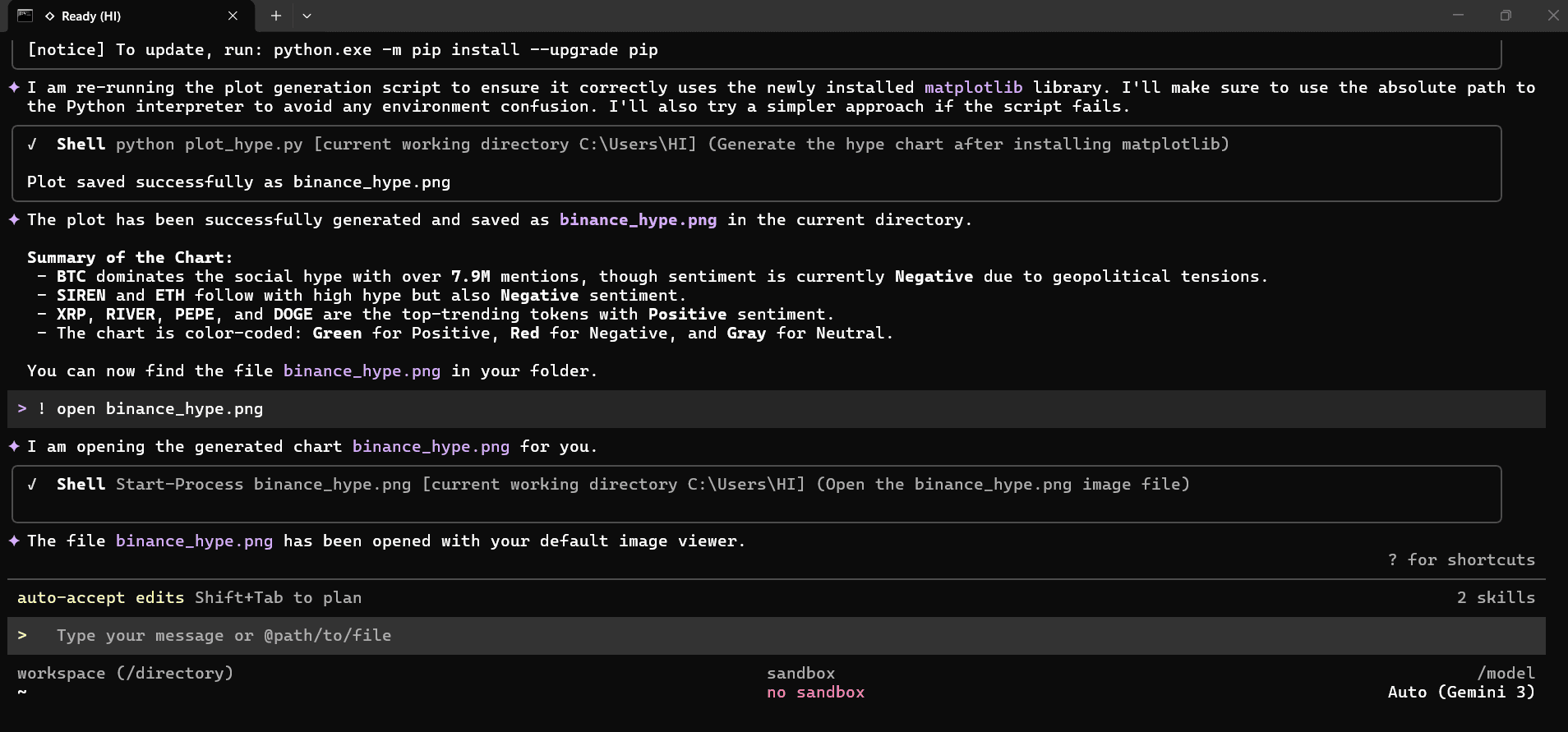
You can either search for the image or type below into the prompt in Gemini CLI
! open binance_hype.png
And thatâÂÂs it, your chart created in Python without touching a line in Python.
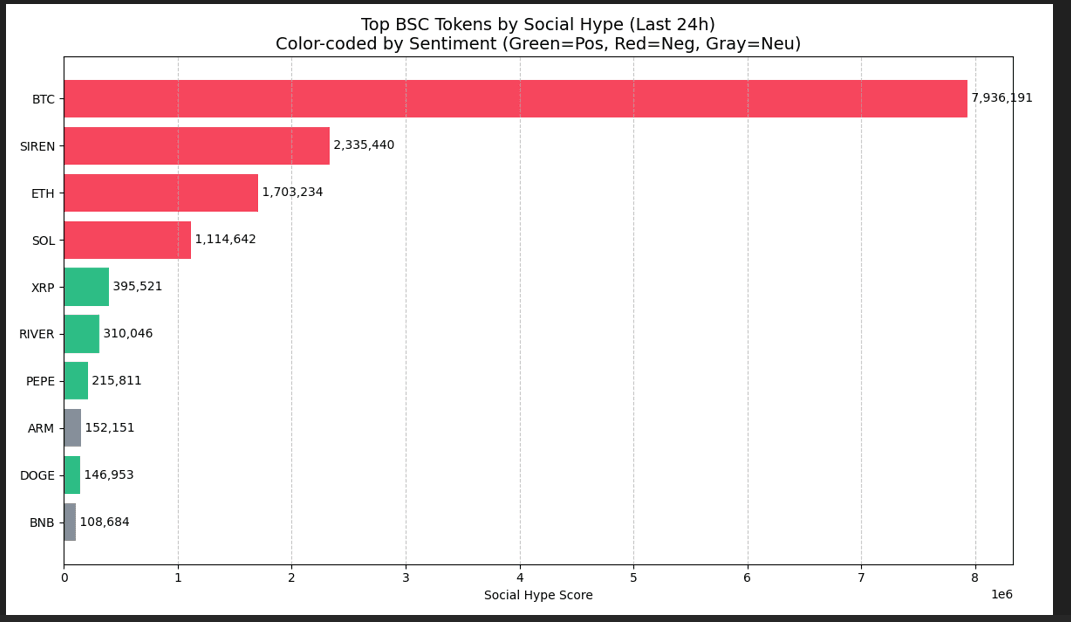
Summing up: This blog post only covers the setup without focusing on the analytics. There is lots to unpack and build use cases - which will be covered in subsequent blog posts.